What Is EzPaste?
Let's say that your workbook contains 50 charts and named ranges and that you want to copy 35 of them at once to a new PowerPoint while each of the selected items should be copied to a new slide in a certain order and in a certain format.
When you click on the Control Center on the EzPaste toolbar, a form will be loaded which will automatically display the list of all the 50 charts and named ranges found in the workbook.
You check the items to paste and set them in the required pasting order. You select the application destination (PowerPoint in our case), the pasting format and the PowerPoint mode (to new created slides or to predefined slides numbers in an existing presentation) then click Continue.
EzPaste is a lightweight Excel add‑in that lets you select any number of charts and tables and paste them all at once, in one click.
How does it work?
This is the main interface the user gets when they load EzPaste from the actual workbook.
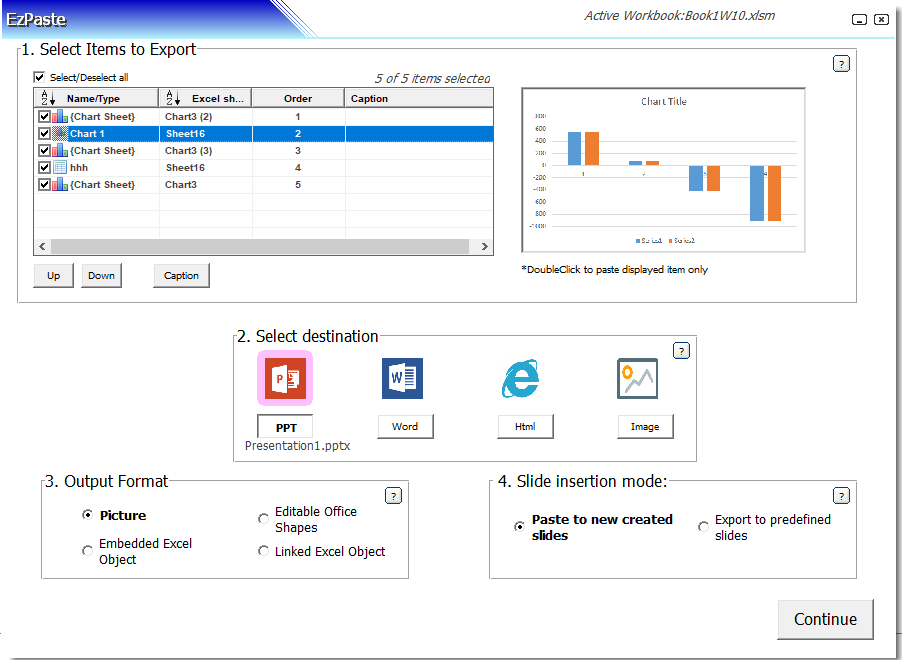 1 Select Items
2 Destination
3 Output Format
4 Slide Mode
1 Select Items
2 Destination
3 Output Format
4 Slide Mode
Installation
Once installed, EzPaste features are immediately available for any Excel workbook, from the new EzPaste tab created within Excel.

EzPaste package will usually be installed in the Users directory under the following path:
"C:\Users\User\AppData\Roaming\Microsoft\AddIns\EzPaste"
Uninstalling EzPaste may be done from Windows control panel "add/remove programs" or by clicking on the Uninstall file created in:
"C:\Users\User\AppData\Roaming\Microsoft\AddIns\EzPaste\uninstall\unins000.exe"
⚠️ Important: It is highly recommended to close Excel and uninstall older versions of EzPaste, before installing EzPaste new version.
Key Strengths
Zero‑Config Persistence
Your selections, captions, and ordering are stored in a hidden sheet—reopen your workbook and settings load automatically.
Precision Layout
Two PowerPoint modes: new slides auto‑added, or paste into predefined slides with full control over position and size.
Flexible Output
Choose from images, native Office shapes, embedded worksheets, or linked Excel objects.
EzPaste — F.A.Qs
Q: What EzPaste (to be pronounced "Easy Paste") can do for me?
A: EzPaste is intended for completely automating and managing the otherwise manual and tedious process of copying and pasting objects from Excel to 6 main destinations (PowerPoint, Word, PDF, Web page, picture files and Outlook). EzPaste identifies automatically all the objects in the active Excel file. With a click of a button, hundreds of charts and tables from the active Excel file could be copied to their intended destination.
Q: What if I want to paste only the current selection in Excel?
A: A nice feature in EzPaste is the ability to swiftly paste the active selection (chart or table) from the EzPaste toolbar, thus overriding the usual 3-4 steps (copy selection, go to application, paste special…). The feature is available for PowerPoint, Word, picture file and Outlook. It justifies by itself the adoption of EzPaste as a standard.
Q: Which objects in the Excel file does EzPaste identify as potential for pasting?
A: EzPaste identifies automatically 3 types of objects:
- Embedded charts within data Excel sheets
- Charts located in separate Chart-Sheet
- Tables (rectangular range of data)
Q: In what format are Excel objects pasted?
A: Objects from Excel may be pasted as:
- Flat Pictures (that could not be edited within the target application). In Office2010/2013, various styles are available (Shadow, reflection...) from EzPaste
- Excel objects (that could be edited within PowerPoint or Word)
- Linked objects (That update themselves when data or format in the Excel source file changes)
Q: How do I know which objects have been identified by EzPaste?
A: EzPaste shows the list of the detected charts and tables in its Main Form. A preview window in the Form displays the picture of each selected object in the list when it is selected. Items could be checked/unchecked for controlling which objects will be actually pasted.
Q: Should I have to redefine the EzPaste settings, each time I reopen the same Excel file?
A: Not at all! Each time EzPaste is closed, all the settings are saved along with the Excel file to which it refers. Reopening the Excel file will automatically make its settings available to EzPaste.
Q: How do I get to EzPaste features?
A: EzPaste is installed as a regular Excel Add-In. Once installed, a new tab "EzPaste" is created in the regular Excel tabs row.
Q: How does EzPaste know to what file to paste the Excel Objects?
A: EzPaste monitors which files are open and active. In PowerPoint the objects will be pasted in 2 possible modes:
- To new slides automatically added to the active PowerPoint file
- To predefined slide numbers in the active PowerPoint file
Before pasting takes place, EzPaste will indicate you how many objects will be pasted and to what file, and ask for confirmation.
Q: Is there a limit to the number of objects that could be pasted with EzPaste?
A: No!
Q: What other information could be inserted in the slide?
A: Apart from the main object (chart/table), you may insert the slide title (entered and edited within EzPaste main form) and the path of the Excel sheet.
Q: May I paste many objects at once to the same slide?
A: Yes. You simply create the structure you want on a sheet, then define the according range containing the structure as a defined name that will appear for EzPaste as a single object.
Q: How does EzPaste know in what order to paste objects to the destination file?
A: Objects are pasted according to their order of appearance in the Main Form list. This order could be controlled by sorting the list according to 3 keys (order of appearance in Excel, objects names and worksheets names). In addition, each item could be moved up and down in the list.
Q: How does EzPaste identify which tables of data are relevant for pasting?
A: EzPaste provides a built-in utility for creating Tables of data in Excel. EzPaste identifies tables according to the name they have been assigned by the user. Only tables of data with a specific name are identified by EzPaste. The name serves as a fixed reference address for that table, regardless of the data inside the table. Names could be also allocated through the built Excel naming process.
Q: How does EzPaste know how to position pasted objects in the PowerPoint slides?
A: EzPaste enables you to control the exact positioning of the objects in the target PowerPoint slides. It provides a visual utility in order to set the slides layout.
Q: Why does the pasting process sometimes take more time than usual?
A: The probable reason is that the pasting format mode is "Excel editable objects" which takes longer time than the format mode "Picture", due to the fact that not only the object is pasted but also a lot of information about the spreadsheet that contains it.
Q: What kind of license is provided?
A: The license is provided for unlimited time for one computer only. Enterprises may purchase one license that is valid for a determined number of installations.
Q: What is the difference between the unregistered and the registered version?
A: Besides pasting to files, all the destinations are disabled after 10 days or a certain number of uses. Up to 10 Excel items may be pasted at once.